







Trades and construction
A job per site or contract, the switch at lunch when the van moves on, and the hours each job took when you price the next one. See construction timesheet software.
For trades, cleaning contractors, site and event teams
TimeTally is project time tracking software for teams who work shifts on sites and jobs. Staff clock in to the job on their own phone, switch jobs when they move, and every approved hour lands on a project. You see the hours and labour cost each job and each client took, ready for job costing and payroll.
How an hour finds its job
Some of your people clock in on site, some fill in a timesheet at the end of the day, and some jobs are planned weeks ahead on the rota. All three put the hours on a job, and a manager approves the week before anything counts.
On the clock
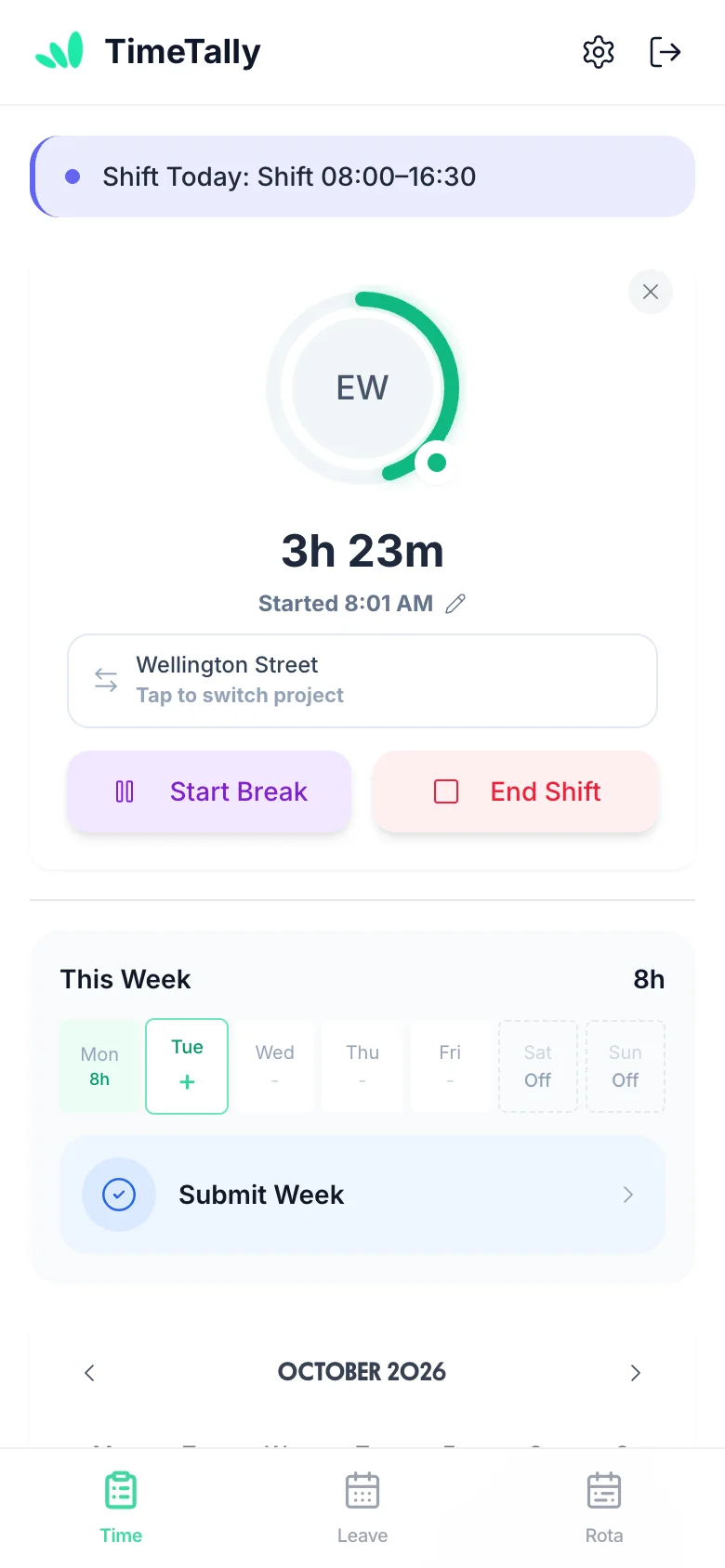
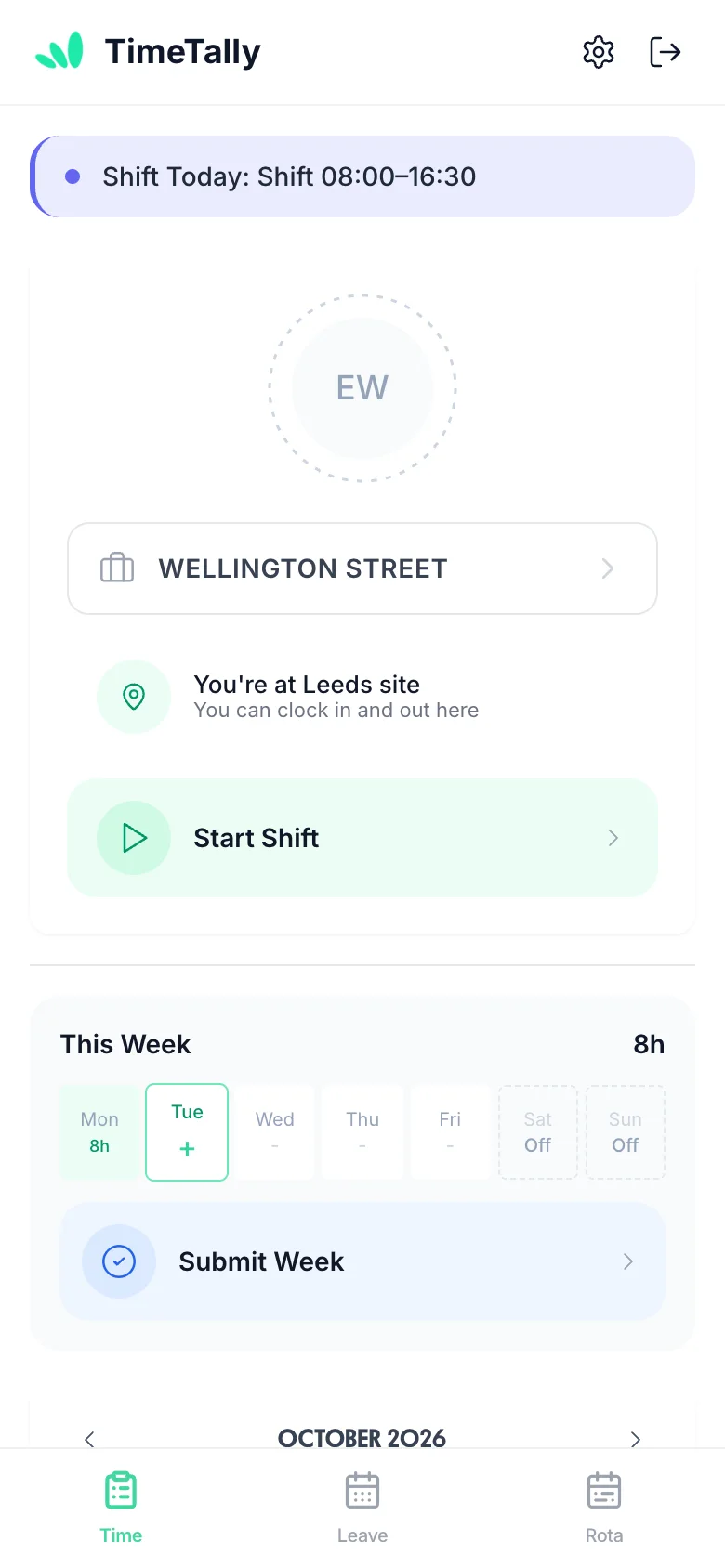
The clock-in card shows the job before the shift starts, taken from their rota shift when the shift names one job. Moving to another site at lunch is Tap to switch project and a choice of job, so the morning and the afternoon land on different jobs without anyone typing a time.
On the timesheet
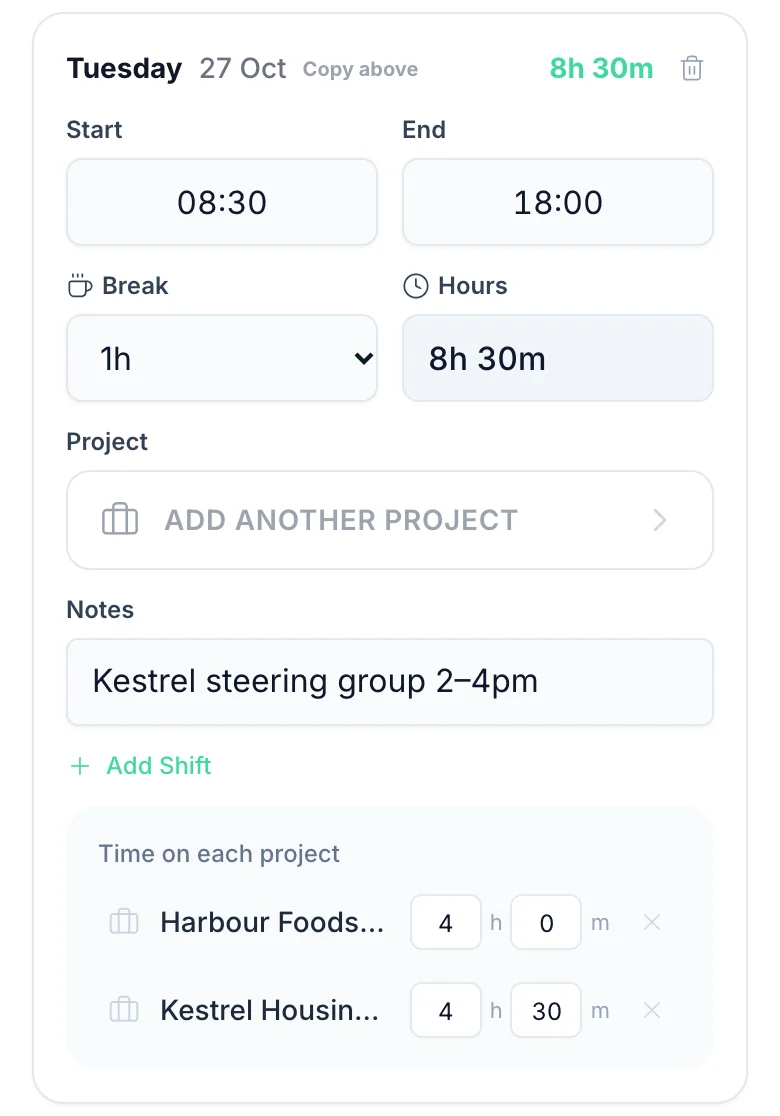
Staff who fill in a timesheet instead put the day's hours, then share them out under Time on each project: 4h on one job, 4h 30m on another. It warns if the jobs add up to more than the hours worked.
On the rota
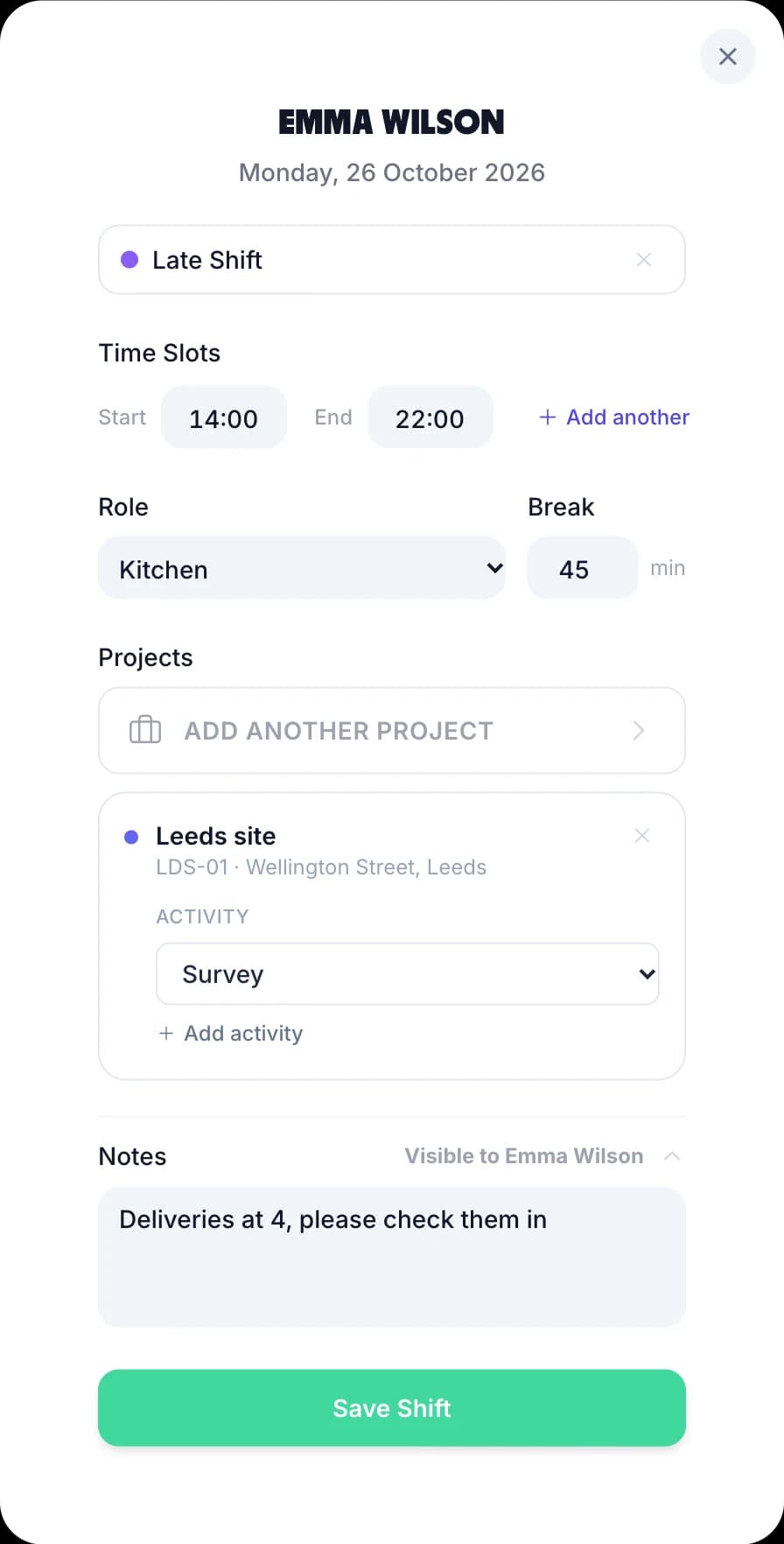
Give a rota shift its job (and an activity) when you plan the week. The shift form shows the job's ID and address, the clock-in picks it up, and Insert Assigned Shift Hours & Projects copies it onto the timesheet.
WS-114Whichever way they come in, the hours sit on the job, split into regular and overtime, once the week is approved.
Settings → Projects
Projects are switched on in every new account. A job can be a site, a contract, a client's building or an event: whatever you need the hours added up by.
Timesheet Analytics → Projects & jobs
Pick a period, from this week to this year or your own dates, and every job your team charged time to is listed with its hours, its people and its labour cost. Narrow it to one job, one department or one person.
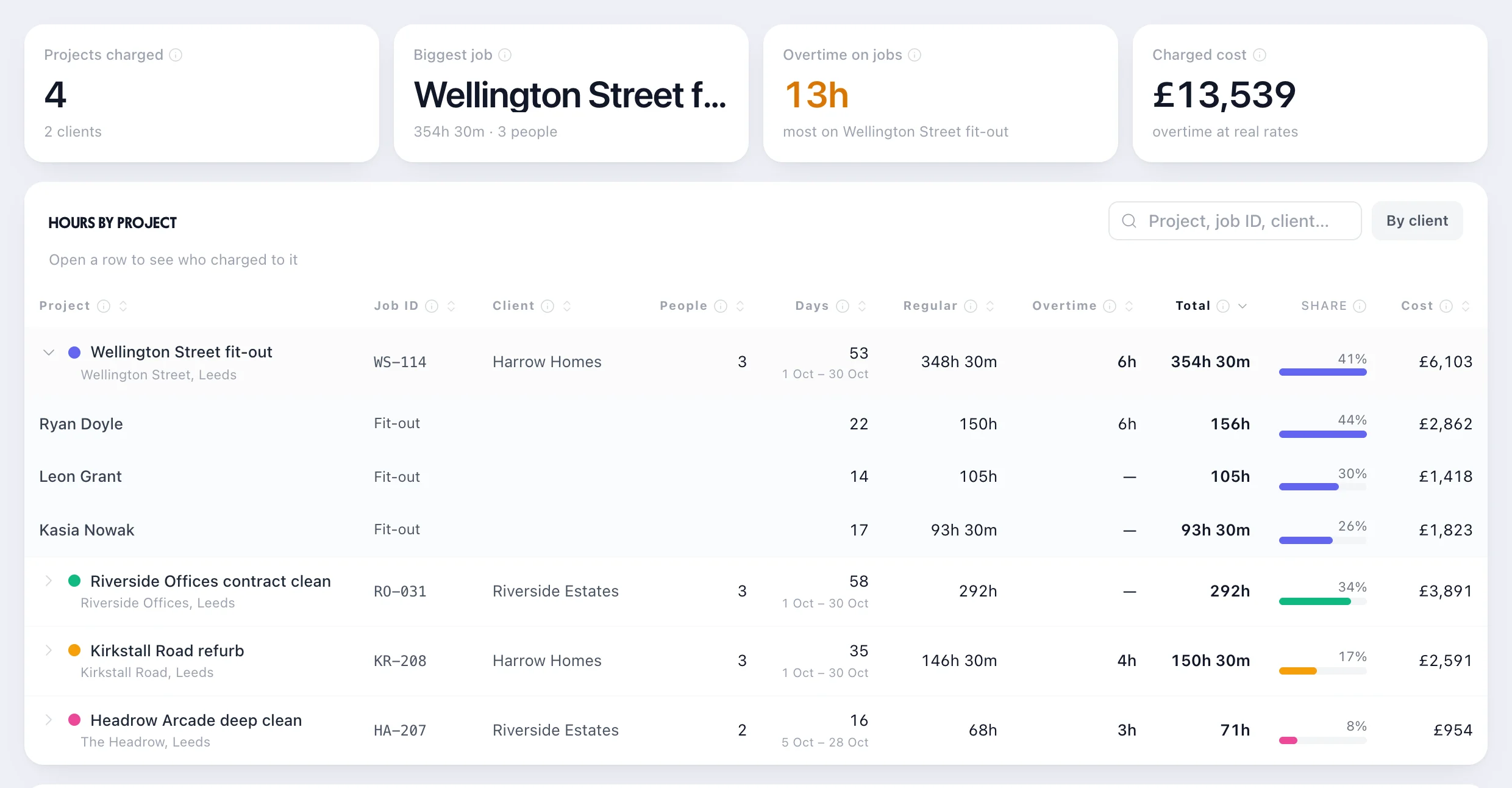
Hours by project Every job with its job ID, client and site, its regular and overtime hours, and its share of the total. Open a row to see who charged to it.
By client One press rolls the jobs up to their clients, so you see a client's hours and cost across every job you run for them.
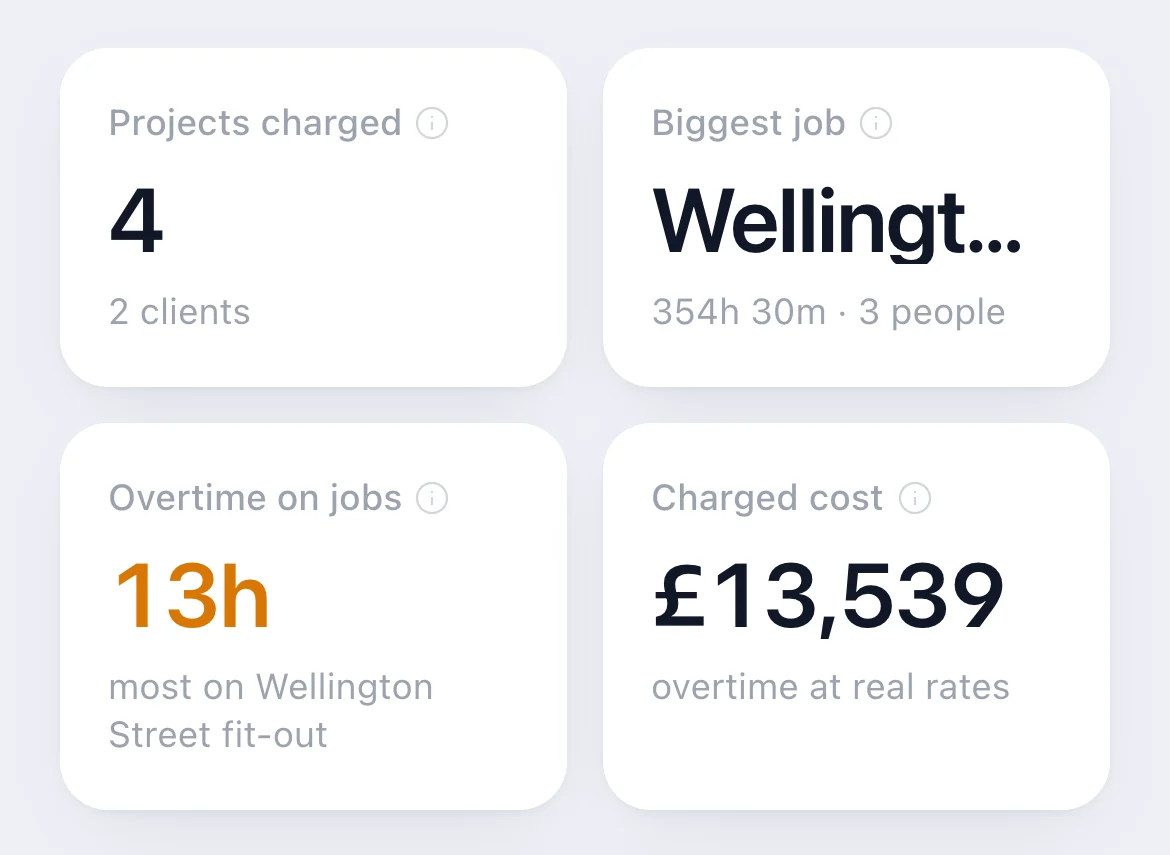
Charged cost Each person's hours at their own hourly rate, with overtime at the rates you pay it. It uses today's rates, not a job's own pay rate: a guide to labour cost, not an invoice.
Overtime on jobs How much overtime went on jobs and which job had the most. Further down the tab, each job's overtime as a share of its hours, before the next one is quoted.
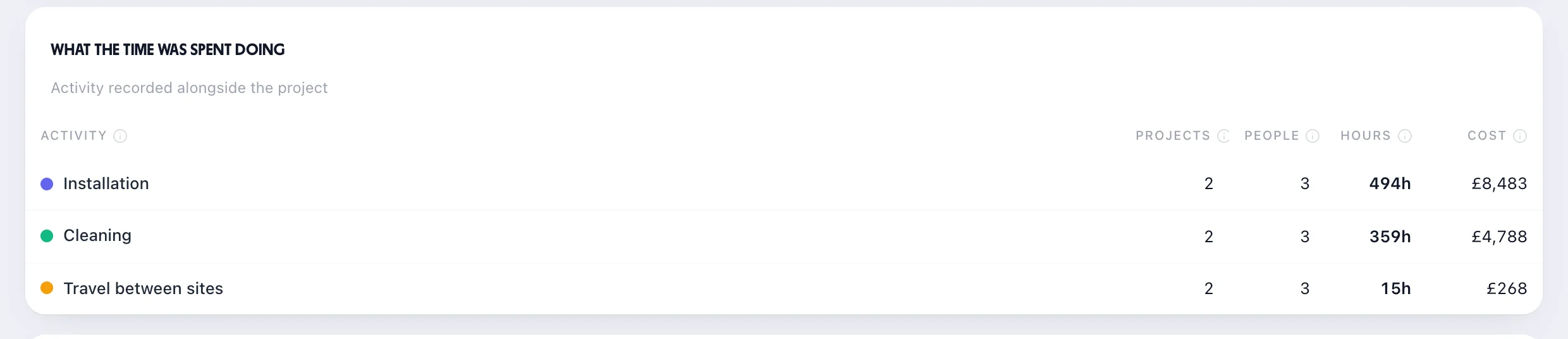
Four settings that sit on a project, so they follow the work wherever your people are that day.
A job can pay its own hourly rate instead of the person's (Instead of base rate), add an amount on top of it (On top of base rate), or pay a flat fee per unit. Those lines go into pay and the payroll export.
Draw an area round the job's address, from 25 metres to 2 kilometres. With GPS clock-in on, people inside it clock in; people outside it are blocked, or let through and flagged, as you choose. The area belongs to the job (or a sub-project), never to the person.
When someone clocks in to a job their rota shift doesn't name, the manager sees “Not on rota” on that day. You can switch the check off, or block it instead. Requiring a job to clock in at all is a separate setting, off until you turn it on.
Turn on Project managers approve their days and the manager of a job sees only the days worked on it, and approves or rejects each whole day. The person's usual manager decides the rest of the week.
More on the site check: GPS clock-in. More on approvals: timesheet approval software.
The people who most need hours by job are the ones least likely to sit at a desk with a timer running.
A job per site or contract, the switch at lunch when the van moves on, and the hours each job took when you price the next one. See construction timesheet software.

A job per building and the client above it, evening cleans planned on the rota, and the hours each contract really takes. See TimeTally for cleaning services.
A job per event, the crew's shifts planned against it, and the hours and overtime each event cost once the week is approved.
Consultants and agencies use the same jobs and clients. See consulting timesheet software for how a client week looks.
TimeTally is the record of who worked on which job and for how long, and what those hours cost you. It isn't a billing or project management tool, and it's better to know that before your trial than after it.
If you bill clients by the hour from a timer, compare TimeTally and Harvest. If you just need simple staff timesheet software without jobs, that's the same app with projects switched off.
Real reviews from TimeTally customers
TimeTally has been excellent for our business… The system has saved us a significant amount of administration time.
 Jordan IngoeCLI Manchester
Setup was dead simple and the team just got on with it. Got everyone up and running in an afternoon with no help needed. Does everything we need for timesheets and holidays without the faff.
Has completely changed how I handle timesheets. Used to dread it every week — now it takes me minutes. Really easy to get around and my staff picked it up straight away.
Started using it just for rotas but quickly realised it does loads more. The timesheets and leave management are great, and it even handles TOIL and overtime which I wasn't expecting. Use it for everything now.
Timesheets, clock-in, projects, the rota and holiday tracking are one plan. You pay for the people, never for the jobs.
A crew of 12
12 people × £3£36 a month
+ GPS clock-in, 12 × £1£12, if you want it
£3per employee a month
Start your free trial How payroll exports workWhat owners and office managers ask before they move job hours off paper and spreadsheets.
Still have a question? See all FAQs
Project time tracking software records which job, site or client each hour of work belongs to, not just how many hours someone worked. In TimeTally staff clock in to a job on their phone (or split their day between jobs on a timesheet), a manager approves the week, and the analytics show the hours and the labour cost of each job and each client. It is built for teams who work shifts on sites and jobs, such as trades, cleaning contractors, construction crews and event staff.
Yes. While clocked in, they tap Tap to switch project and choose the next job. The time before the switch stays on the first job and the time after it goes to the new one. Someone who fills in a timesheet instead shares the day's hours between jobs under Time on each project, and the form warns if the jobs add up to more than the hours worked.
Yes, when pay is switched on and you're allowed to see pay. The Projects & jobs tab in Timesheet Analytics shows each job's hours and a cost worked out from each person's own hourly rate, with overtime at the rates you pay it. It uses today's rates and does not include a job's own pay rate or flat fee, so treat it as the labour cost of the hours, not a quote or an invoice. Pick a period from this week to this year, or a custom range.
No. TimeTally has no invoices, billable rates or project budgets, and it doesn't send anything to clients. It records the hours and labour cost of each job and gives you the figures by job and by client, with an export that carries the job ID and client, so you can bill from your own accounts software. If you bill clients by the hour from a timer, a billing tool such as Harvest may suit you better.
Yes, with GPS clock-in, an optional add-on at £1 per employee a month (free during the trial). You draw an area round each job's address, from 25 metres to 2 kilometres, and people can clock in to that job only inside it. A sub-project without its own area uses its parent job's.
Only approved timesheets go to payroll. The CSV export can give one row per employee per project, one row per project, or one row per project split, and Xero and QuickBooks receive a manual journal with a separate Project Pay line where jobs pay their own rates. The analytics export (Detailed lines, Person × project or Projects summary) carries the job ID, client and site for your own job costing.
TimeTally is £3 per employee a month, with projects, timesheets, the rota and holiday tracking all included. A crew of 12 is £36 a month. GPS clock-in is £1 extra per employee. There's a 14-day free trial and no card is needed to start.
Try TimeTally free for 14 days. Set up your jobs, let your team clock in to them on their phones, and see the hours and labour cost of each job at the end of the week. It's part of the same employee time tracking software, at £3 per employee a month.
14-day free trial · No credit card needed · Cancel anytime